Trndi - CGM Data on Desktop & Raspberry Pi
Setting up an additional user
Adding a user
- Start Trndi as usual
- Richt-click and open settings
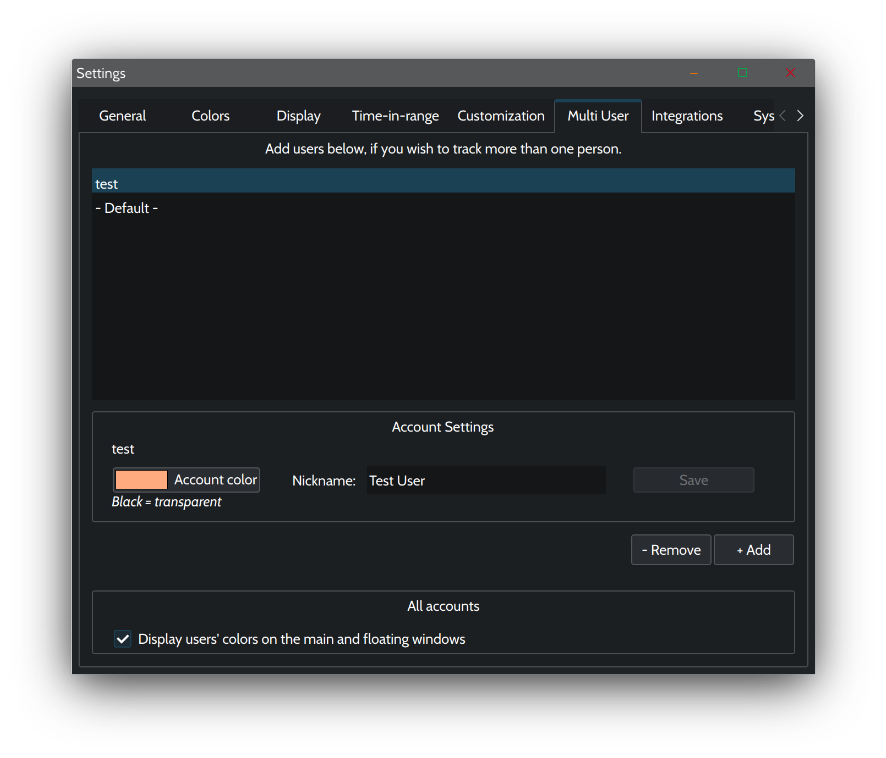
- Click the “Multi User” tab
- Click Add
- Close the window and save settings
- A new user has been created
Logging in as a user
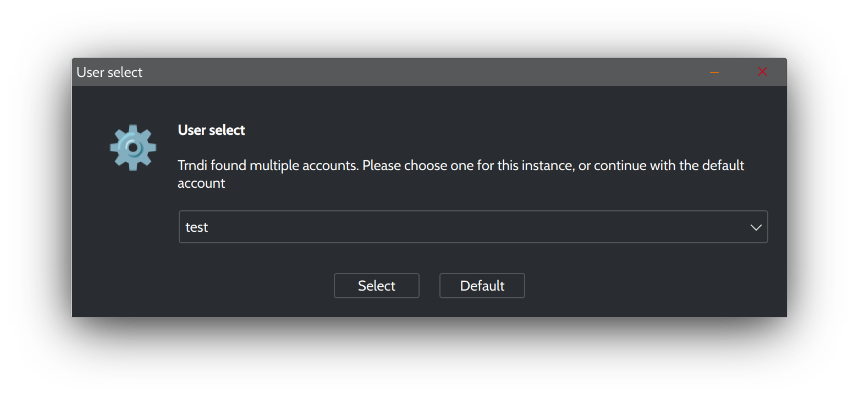
When users exist, Trndi will ask which one you want to use on start-up:
Customizing a user
- In the user list, click the user’s username
- Below choose an account color and nickname
Click Save, before closing the window or selecting another user. Settings wont apply unless you click Save!
The color chosen will be assigned to the window when Trndi loads the user. The username is also displayed in the title bar. If you are on Windows, the titlebar will change colors, while on Linux/macOS a sidebar will appear.
Standard user
There is always a standard user, you can assign it a nickname and color aswell. The standard user is the information you’ve saved before adding additional users. It cannot be removed.
Removing a user
- Select the user in the list and click Remove.
- Close settings and apply changes.
Retrieving a user
If you add a username again, which has been deleted before, the setting will still be saved. Thus, deleting a user removes them from the list, but does not delete their data!
Reverting to single user
- Remove all users, close settings and apply
- The standard user is now the only user available, and you will not be asked to choose an account at start up